Click on the Jamf Connect icon located in the menu bar at the top right of your screen.
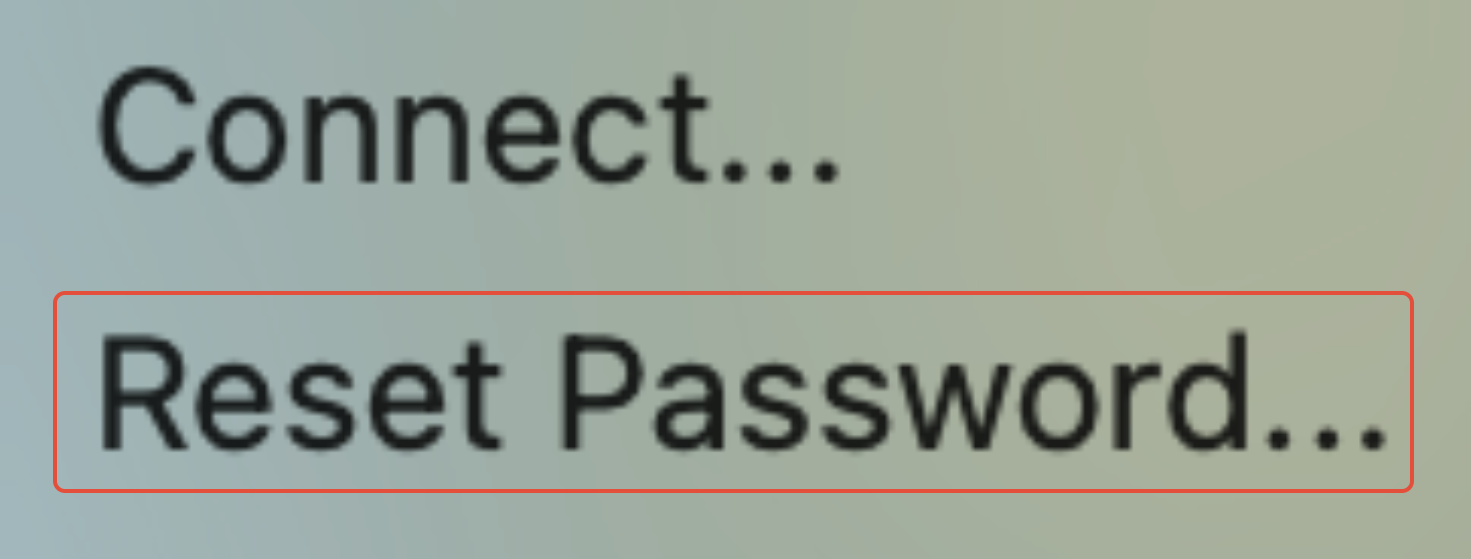
In the drop-down, click Reset Password.
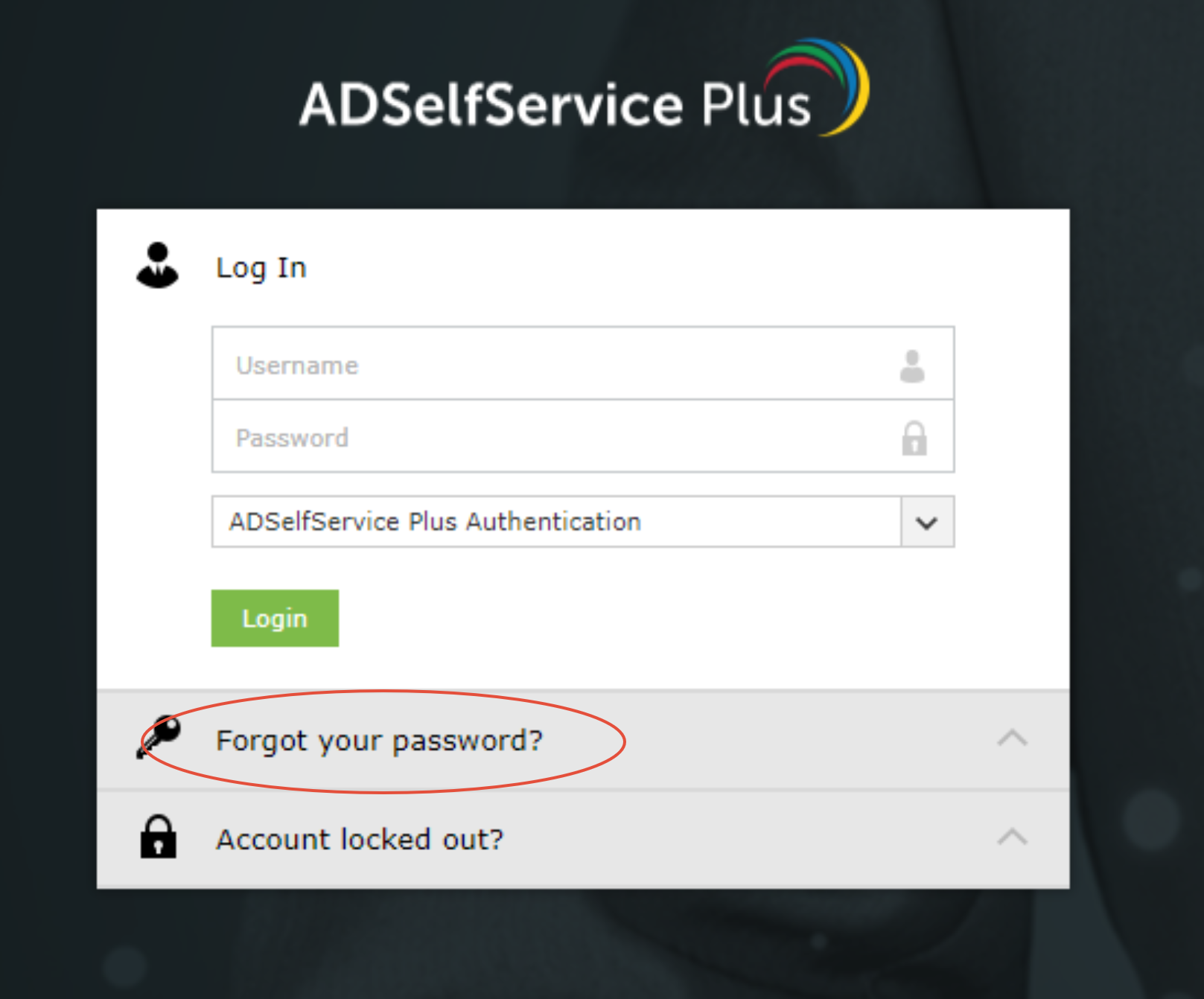
Click Forgot your password?
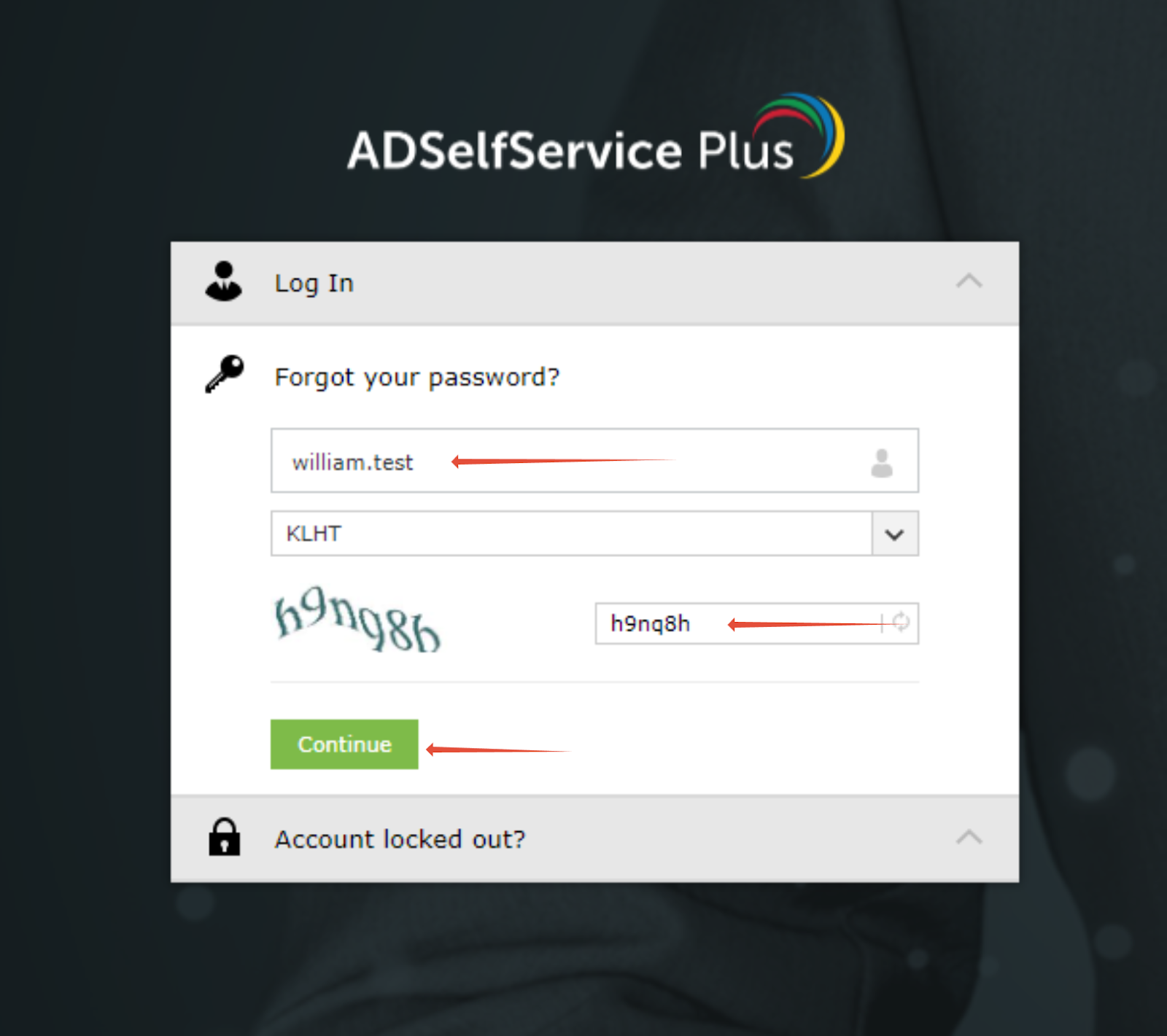
Enter your username and CAPTCHA code, then hit Enter on your keyboard.
The name "William Test" will be used in all examples below.
Enter only your first initial and last name (wtest) as the username.

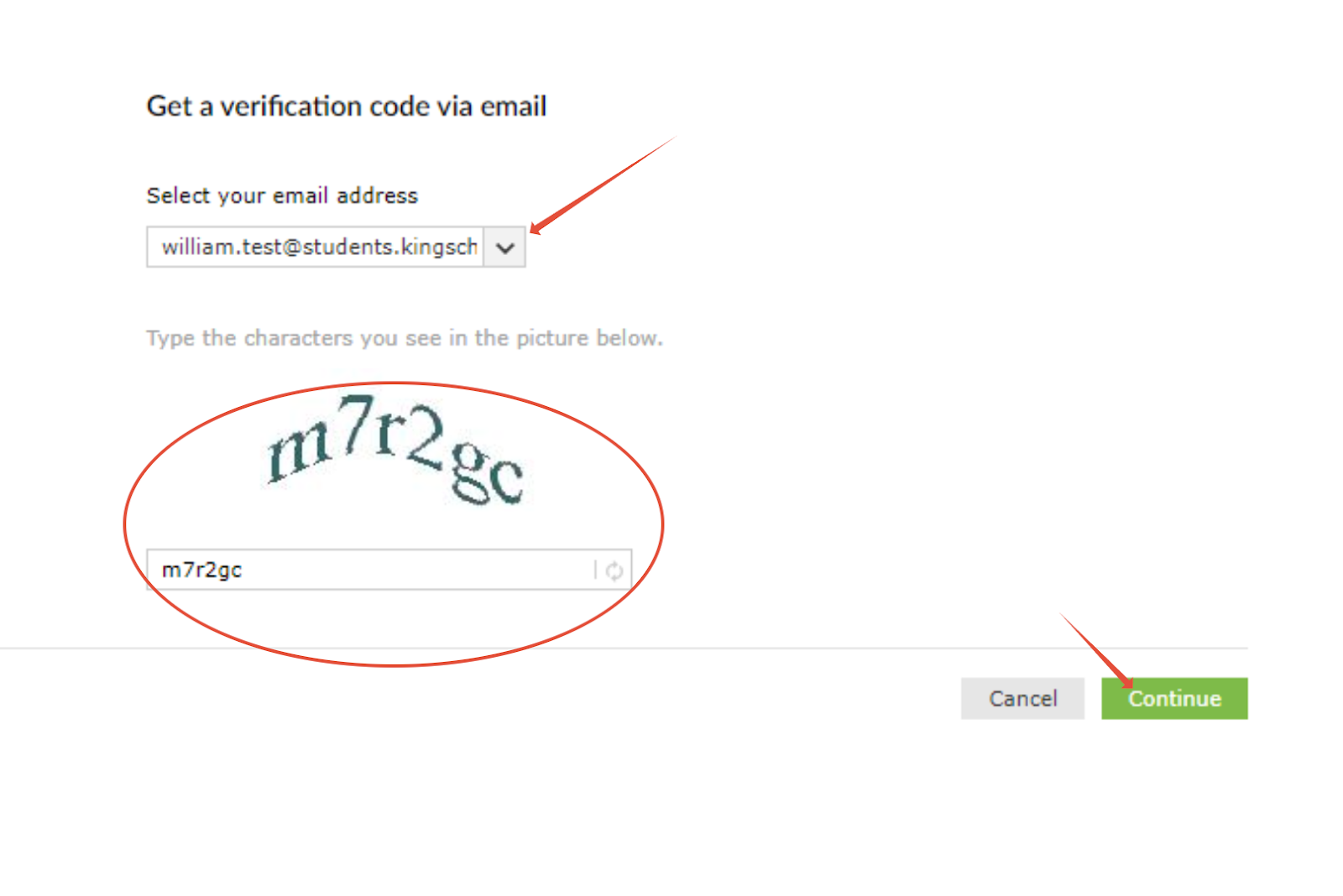
From the drop-down menu, select your full King School email address. Fill out the CAPTCHA and then hit Enter on your keyboard.
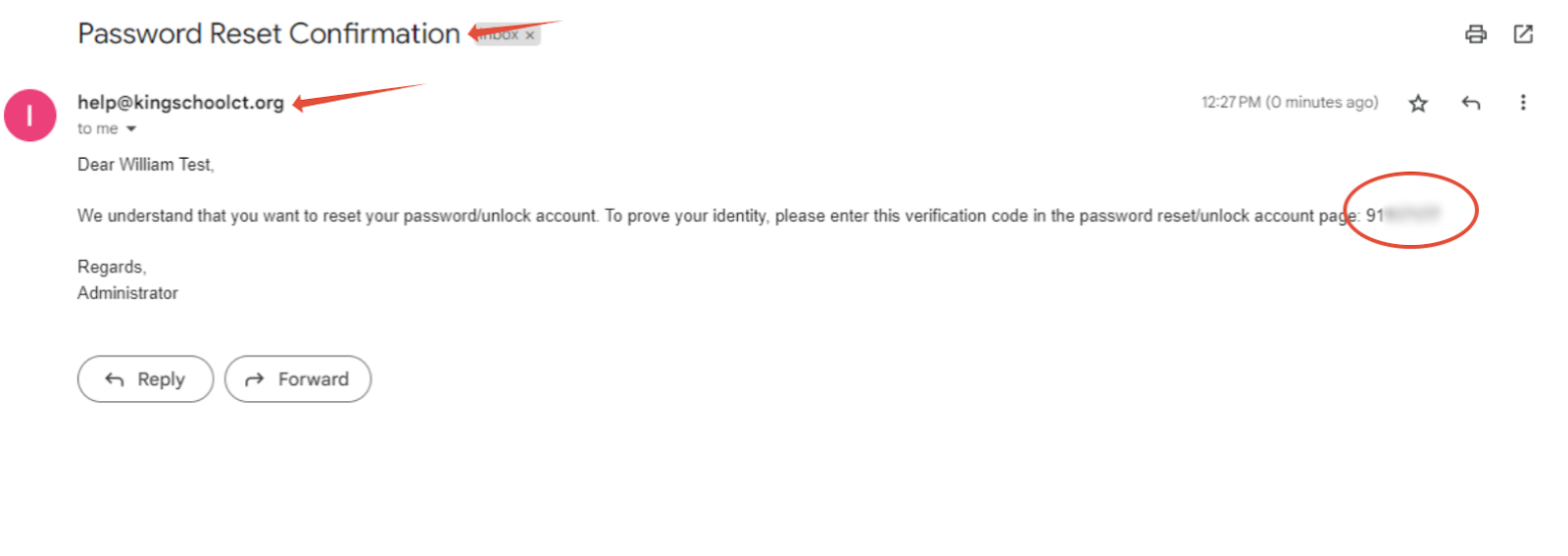
You should've received an email from help@kingschoolct.org with the subject Password Reset Confirmation.
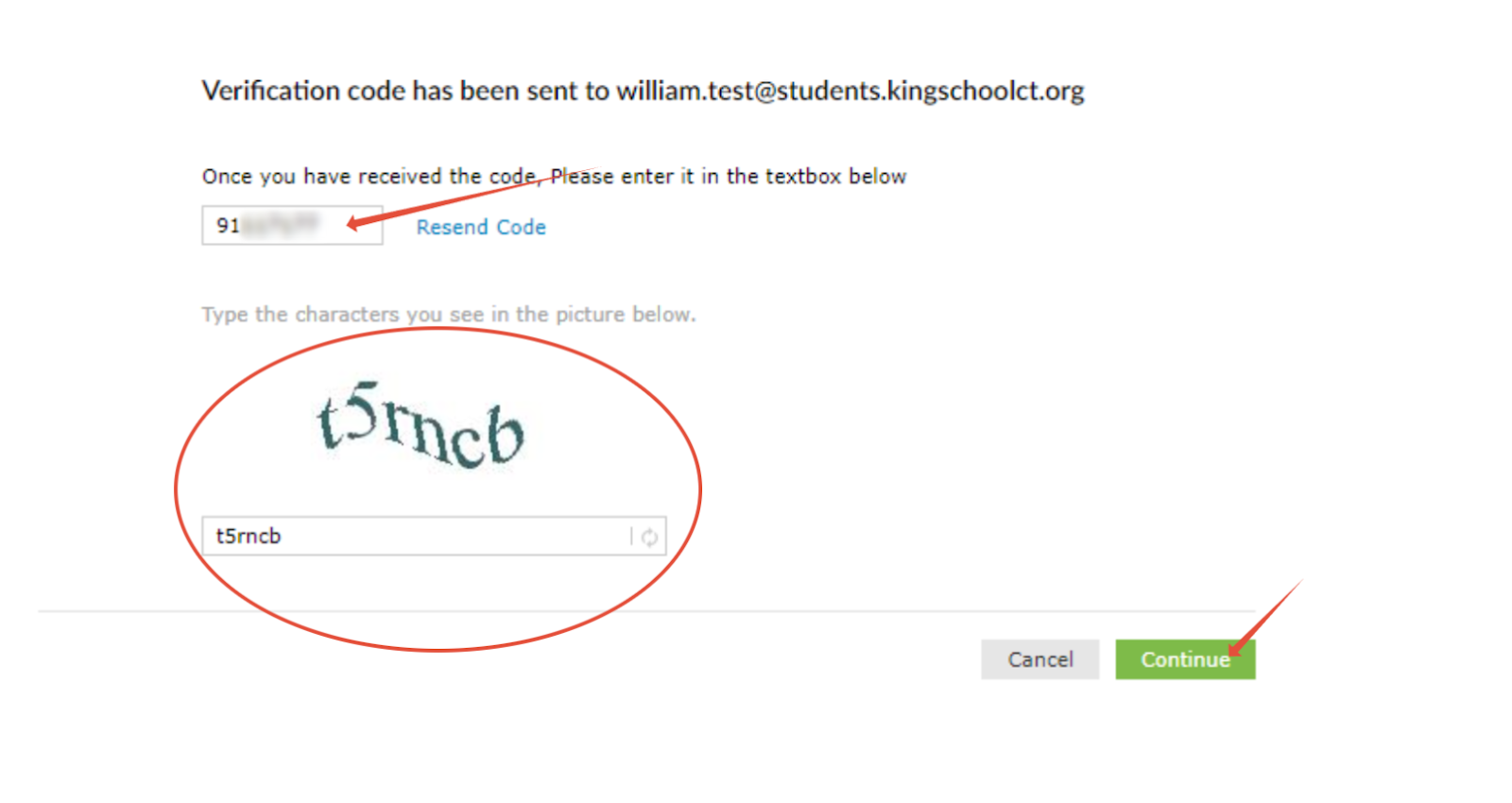
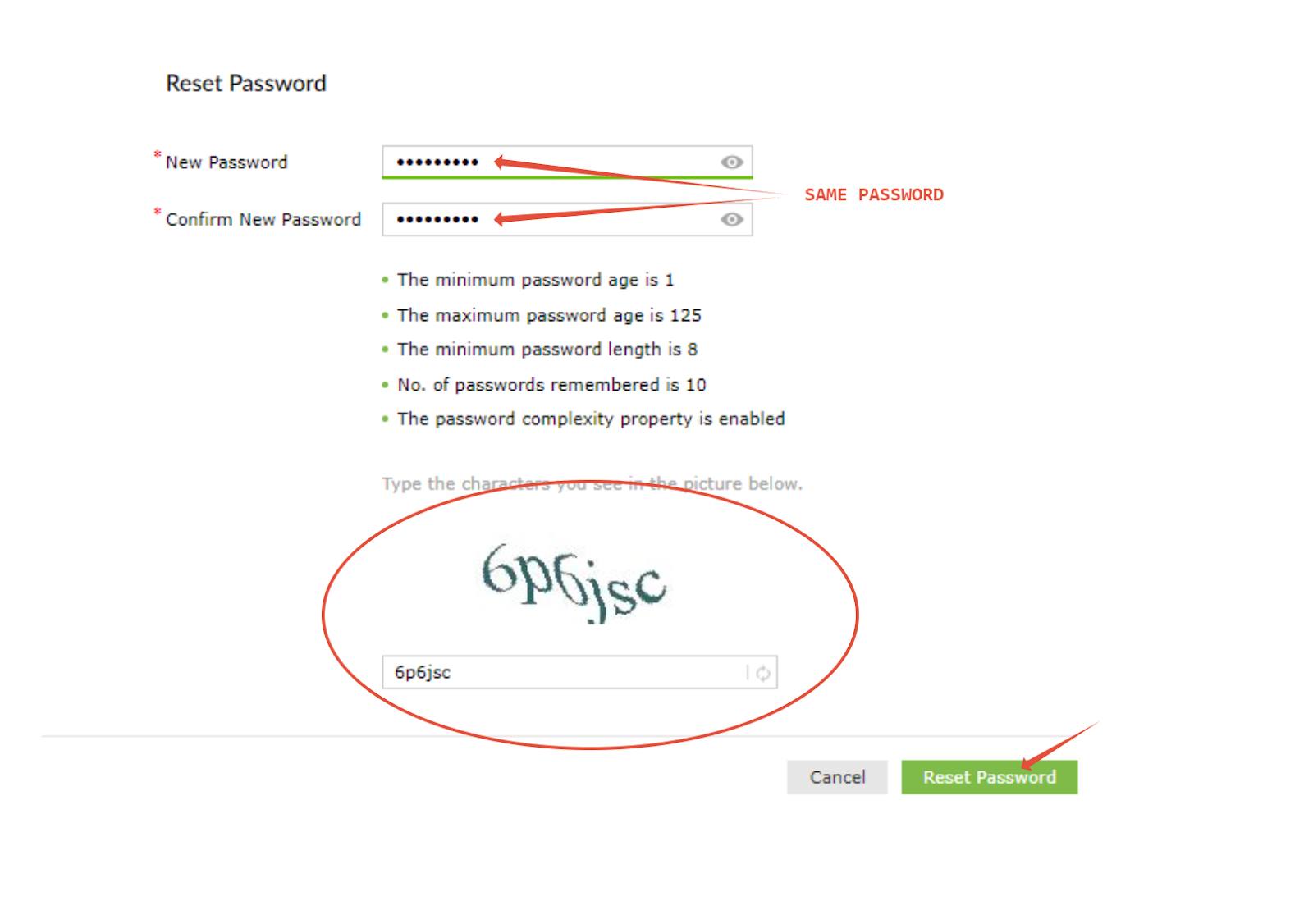
Copy the provided code from the email, return to the website, and enter the code. Complete the CAPTCHA and hit Enter.Please create a new password, type it again in the confirmation box, complete the CAPTCHA, and hit Enter.
Please see below for the password requirements/restrictions.You cannot use your first or last name in your password.
Have at least 1 capital letter and 1 number. 1 symbol is recommended but not required.
The password must be at least 8 characters long.
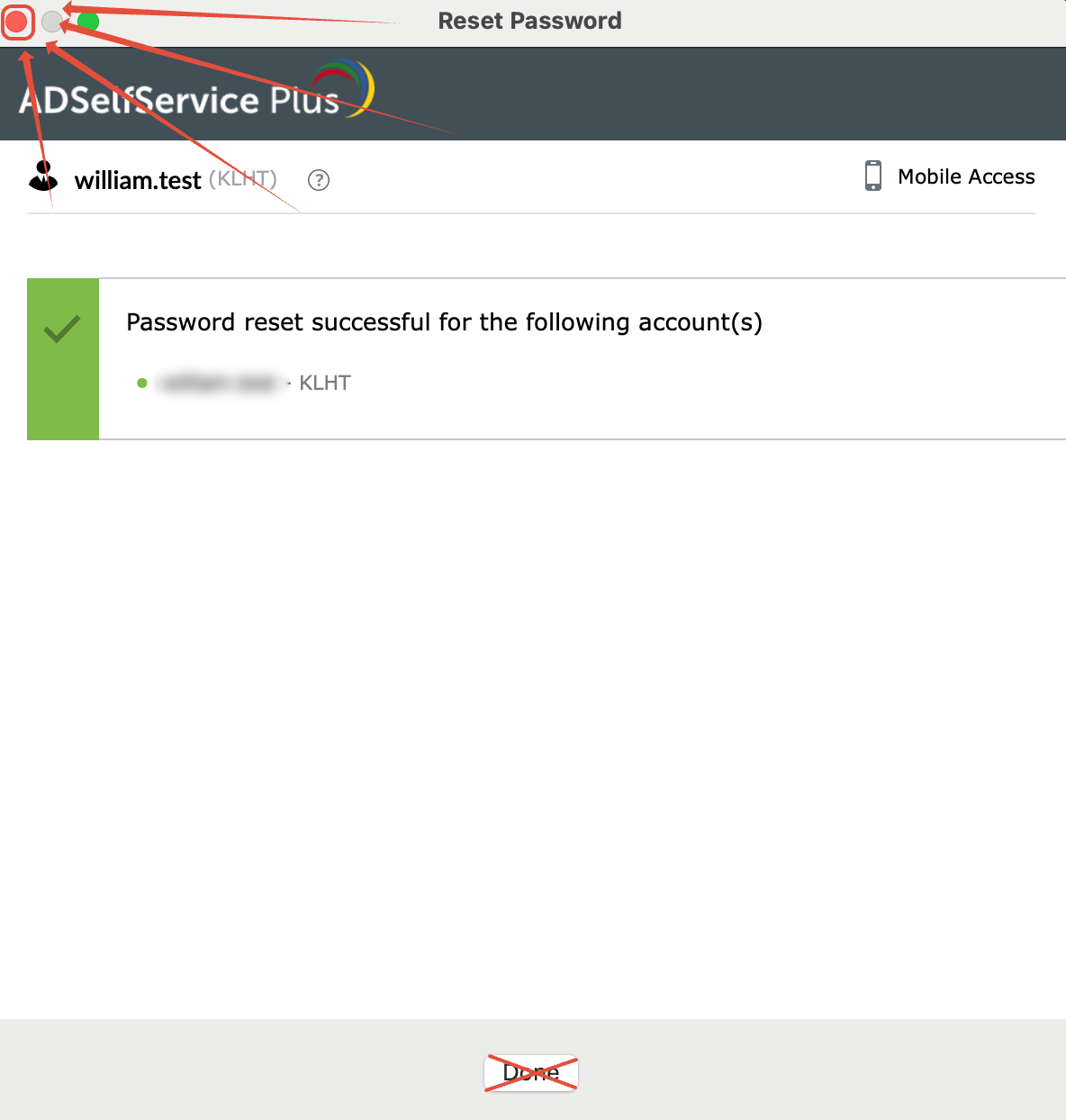
After completing the reset, you will see a window like the one below.
Close the window by clicking the red X button in the upper-left corner.
Do not click Done.
If you accidentally click Done, simply close the Sign in with your Email window and continue with the steps below.
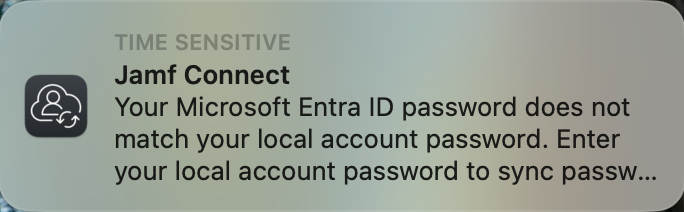
Your device checks in with the server every 15 minutes. Once the check-in occurs, you will receive a notification.
You may lock your device, but please do not log out or reboot until you see this notification.Click the notification as it appears.
If you do not see the notification after 15 minutes:
Click the Jamf Connect icon in the menu bar.
Select Connect to continue manually.
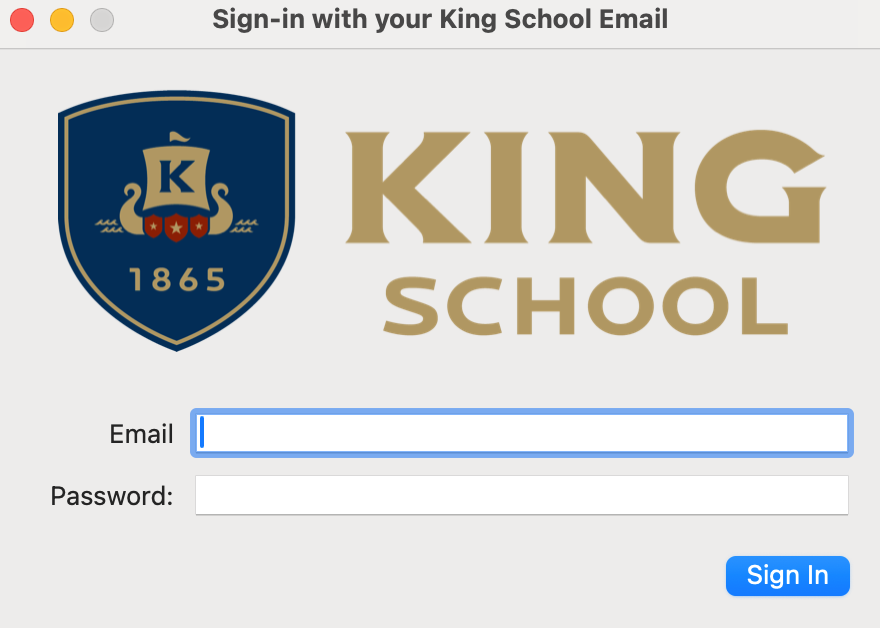
After clicking the notification or manually clicking Connect, you will see a sign-in window like the one shown below.
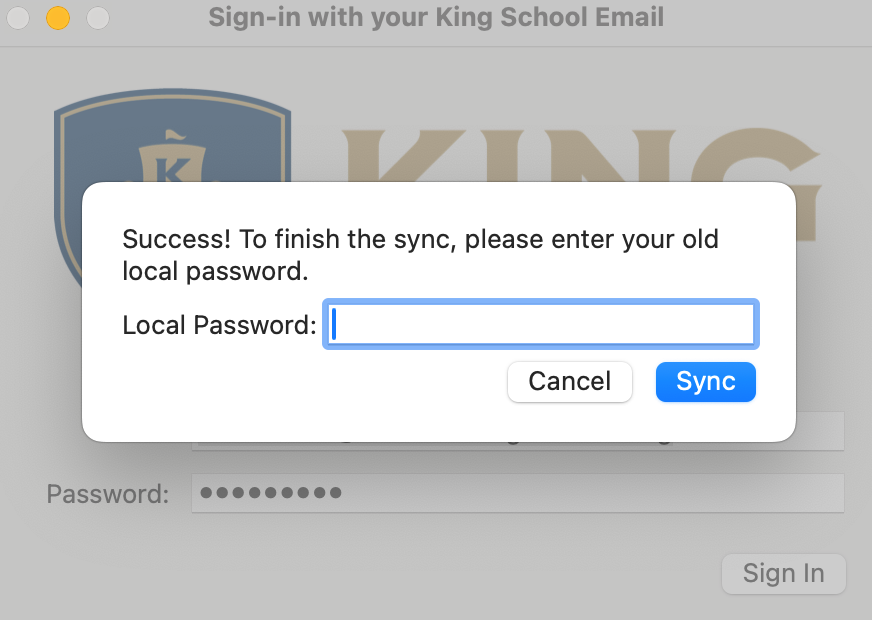
Enter your full email address and your new password.If your new password is accepted, you'll see a prompt asking for your old password. Enter your old password and click Sync.
If no error messages appear and the window closes automatically, your password reset is complete.
Was this article helpful?
That’s Great!
Thank you for your feedback
Sorry! We couldn't be helpful
Thank you for your feedback
Feedback sent
We appreciate your effort and will try to fix the article