With Jamf Connect, users can now request temporary admin privileges without submitting a help desk ticket.
The temporary elevated privileges are granted for 2 minutes before timing out.
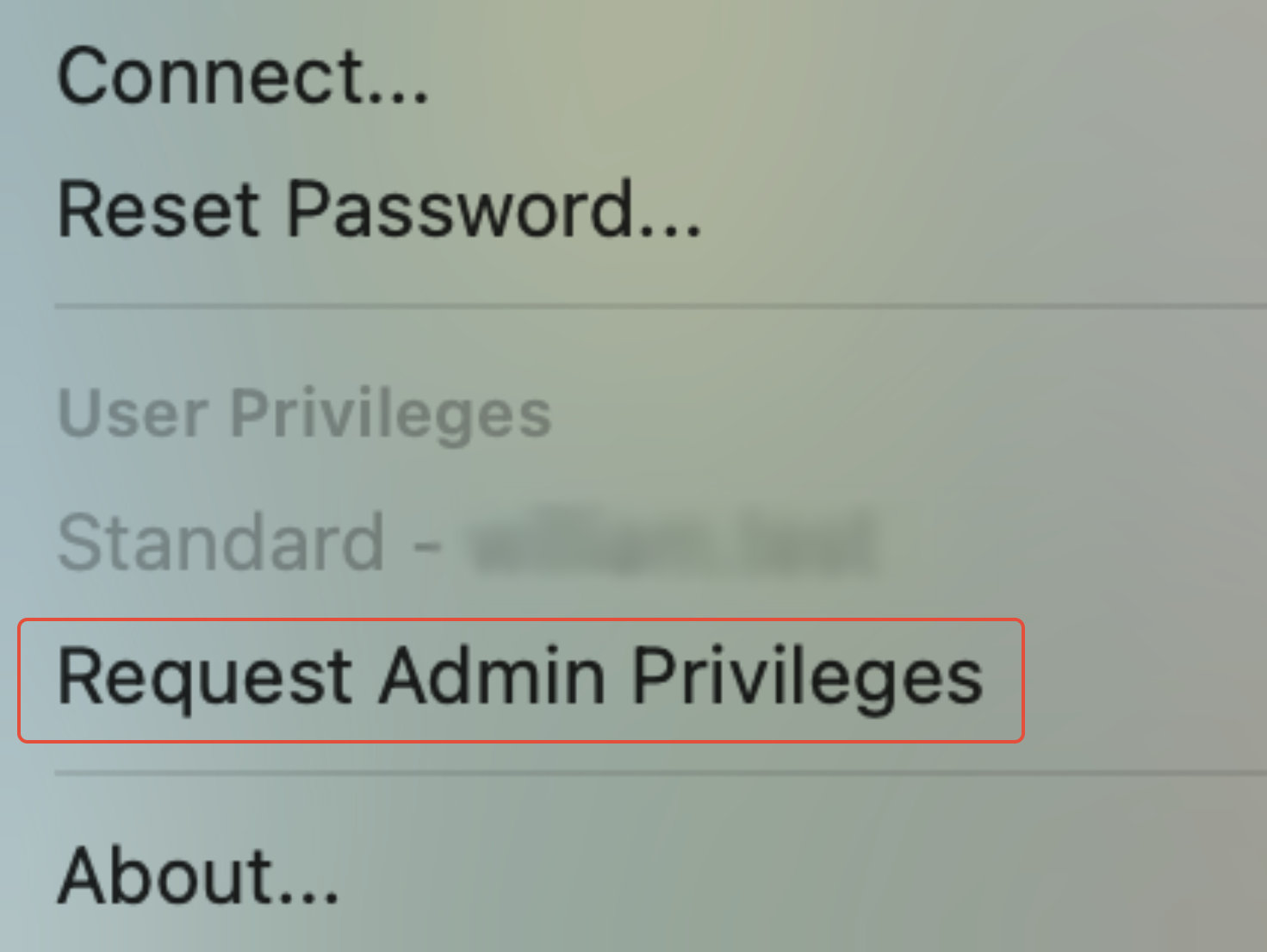
- Click the Jamf Connect icon in the menu bar, then click Request Admin Privileges from the drop-down menu.

- For some users who have received a silent update, the Jamf Connect icon in the menu bar may appear as shown in the image below.

- For some users who have received a silent update, the Jamf Connect icon in the menu bar may appear as shown in the image below.
- Choose an option from the list and click Continue.
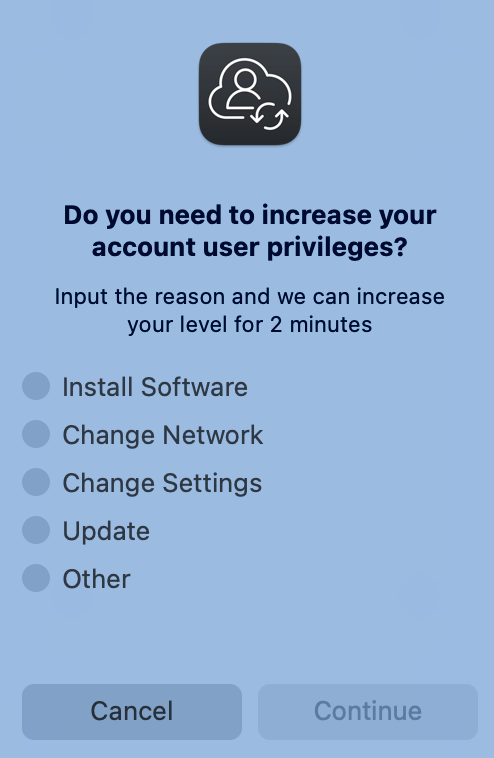
- If the reason for why you need elevated privileges isn't listed, select Other and enter a short description.
- If the reason for why you need elevated privileges isn't listed, select Other and enter a short description.
- If your request is successful, you'll see a notification like the one shown below. You now have admin access for 2 minutes and can enter your credentials where admin privileges are required.

Was this article helpful?
That’s Great!
Thank you for your feedback
Sorry! We couldn't be helpful
Thank you for your feedback
Feedback sent
We appreciate your effort and will try to fix the article