Each employee will need to create an email signature on their King School Gmail account. To create your signature, please follow the steps below.
Copy the template below.
 | Name Job Title 1450 Newfield Avenue, Stamford, CT 06905 (203) 322-3496, Ext. email address here | www.kingschoolct.org |
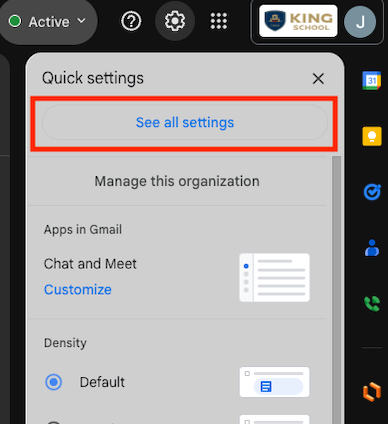
- In the top right corner of Gmail, click the Settings icon (the cogwheel).

- Click See all settings.
- Scroll down to the Signature section.
- Click Create new, and then name your new signature.
Paste the signature template that you copied earlier, and replace the placeholder texts (highlighted in green in the picture below) with your own information: Name, Job Title, Extension, and Email Address.
- Under Signature defaults, set For New Emails Use to the name of your new signature.
Optional: You can also set On Reply/Forward Use to the same signature if you want it to appear on replies and forwards.
Optional: Check the box if you prefer that layout.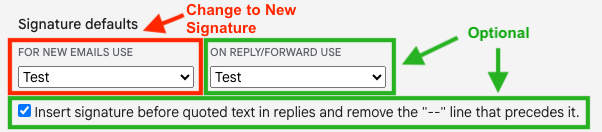
- Scroll to the bottom and click Save Changes.
If you back out or exit Setting without saving, you'll need to reconfigure your signature.
Was this article helpful?
That’s Great!
Thank you for your feedback
Sorry! We couldn't be helpful
Thank you for your feedback
Feedback sent
We appreciate your effort and will try to fix the article