These instructions are intended for families who have already linked their Tuition Management account to their Blackbaud ID (MyKing) account and need to sign back in.
If you are a new family and signing in for the first time, please click here and follow the instructions.
- Log in to your MyKing account.
- If you do not know how to log in to MyKing or have never signed in before, please click here and follow the instructions.
- If you do not know how to log in to MyKing or have never signed in before, please click here and follow the instructions.
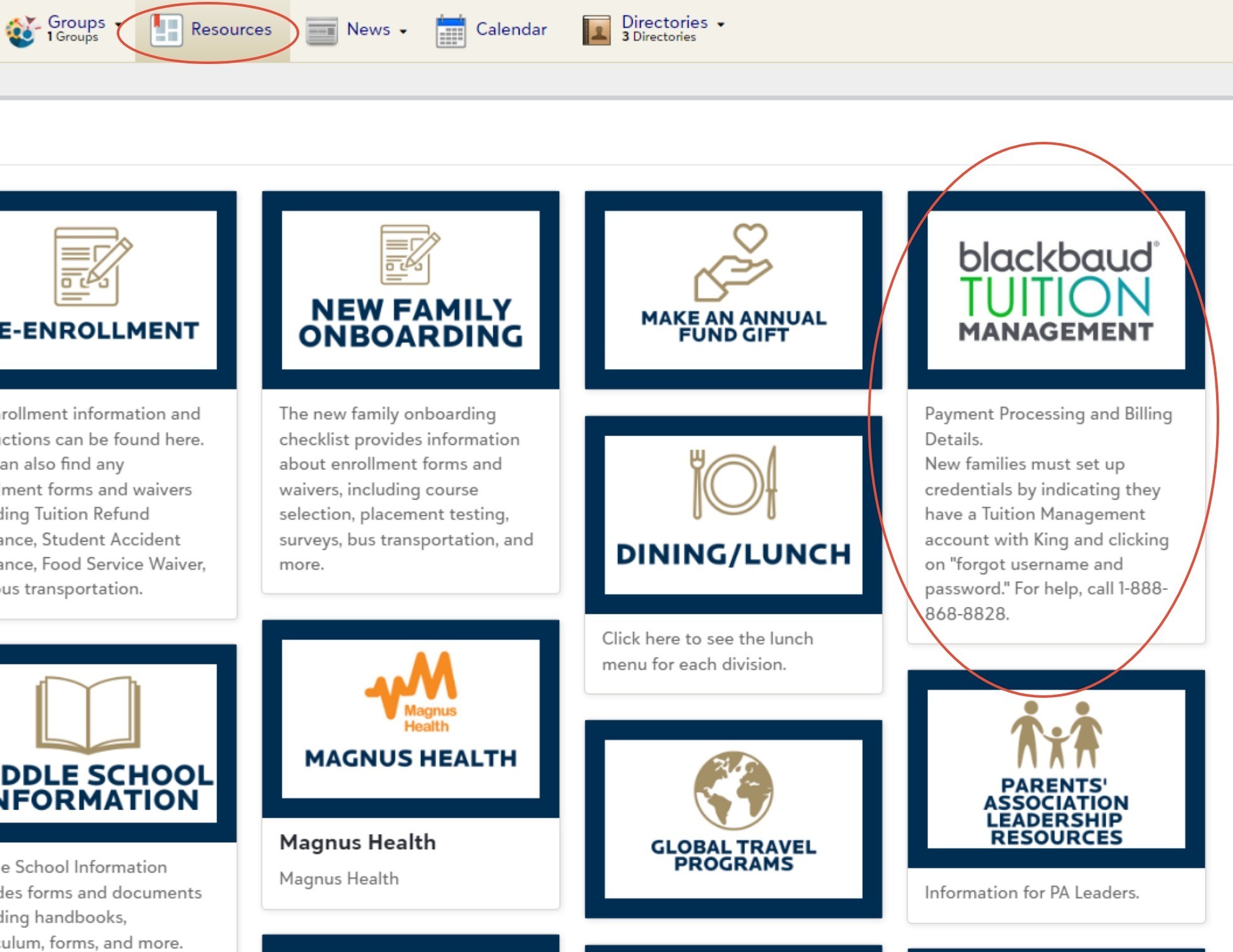
- Select the Resource tab, then click Blackbaud Tuition Management.
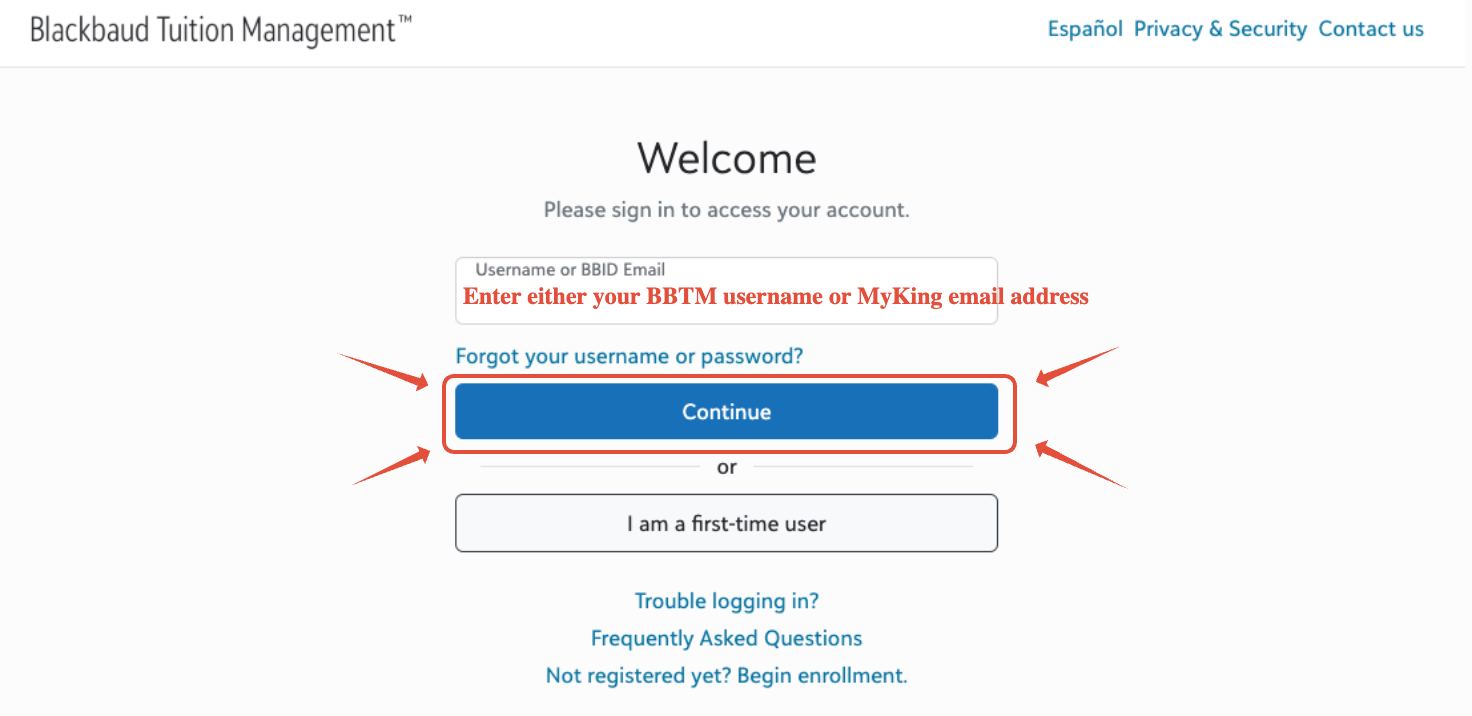
- Either enter the email address that is associated with your MyKing account or your BBTM username.
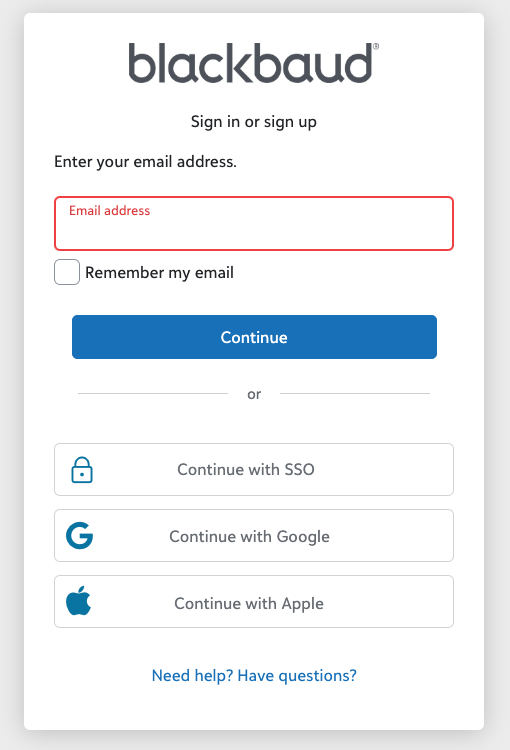
- On this page, please log in as you would for MyKing.
- If you are using a Google account, click Continue with Google. Then enter the Gmail email address on file with MyKing, followed by the password you use to sign in to your Gmail account.
- If you are using an Apple account, click Continue with Apple. Then enter the Apple email address on file with MyKing, followed by the password you use to sign in to your Apple account.
- If you are not using either, enter your email address in the Email address field and click Continue. Enter the password that you use to sign into MyKing.
- Since your BBTM and MyKing accounts are synced, you should now be logged into your BBTM account.
If you need further assistance, please contact the IT Help Desk at help@kingschoolct.org
Was this article helpful?
That’s Great!
Thank you for your feedback
Sorry! We couldn't be helpful
Thank you for your feedback
Feedback sent
We appreciate your effort and will try to fix the article